
Kobie guide
On this page
Kobie user guide
Choosing a model
Choose an available model for your needs and understand what Kobie displays.
Choose a model for chat
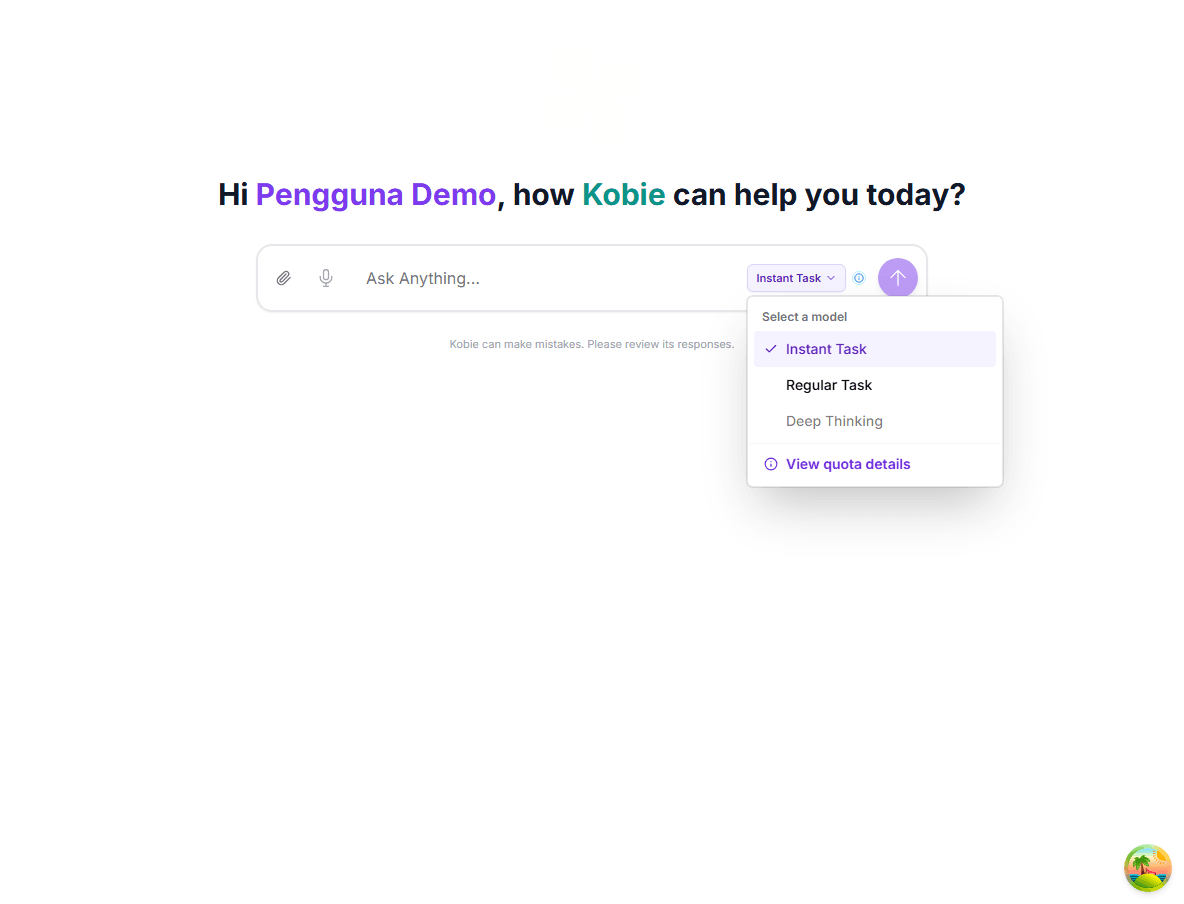
Use the task mode picker below the chat area to select the best mode for your next message. The displayed aliases are the options currently available to your account.
- Select the model name button below the message field.
- Choose a model that is not greyed out.
- Send your message as usual.
What model selection means
When you choose a model, Kobie routes that selection to the configured model route for that model name. The model identity used by the application is shown in the model picker and Kobie conversation metadata.
When a model is unavailable
A task mode may be greyed out when shared weekly usage is exhausted or your membership is unavailable. Check the Plans & Usage page for the refresh time.
An administrator can review membership status and percentage adjustments when your account needs help.
Kobie user guide — Updated August 2026